


Multi-Speaker Podcasts
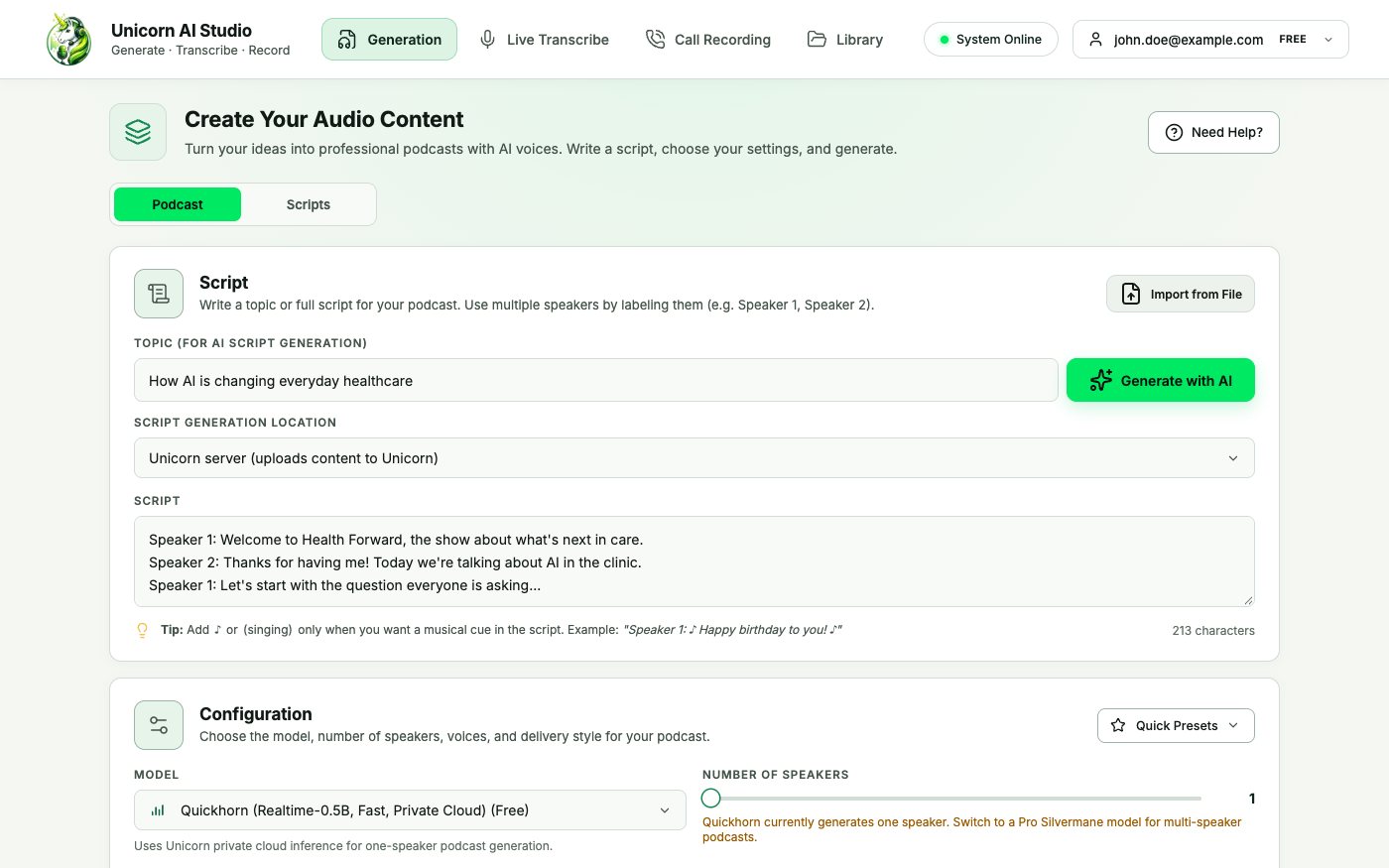
Create episodes with up to four AI speakers and more than 18 voices. Write the script yourself or let AI draft it.
AI-powered audio creation
Turn a script, a PDF, or a rough idea into a multi-speaker episode. Transcribe calls as they happen, fix one line without starting over, and work on your device or in the cloud.
System Requirements: 8GB RAM minimum • 2GB disk space • Modern processor
Turn ideas
into incredible audio.
Powerful features
From the first idea to the finished episode, create, transcribe, and polish audio in one place.
Create episodes with up to four AI speakers and more than 18 voices. Write the script yourself or let AI draft it.
Turn PDFs, notes, research papers, Markdown, and DOCX files into editable scripts, narrated audio, or podcast-style briefings.
Add a musical moment with simple ♪ notation. Useful for jingles, intros, and other creative touches.
Press and hold to dictate quick notes and voice memos. In the desktop app, transcription runs on your computer.
Record or upload a meeting and get a transcript with speaker labels. An AI summary pulls out key points, action items, and decisions.
In the desktop app, processing stays on your computer. On the web platform, requests run on Unicorn-managed GPUs.

v1v2v3
Version 2Speaker 1: Patient wait times fell by twelve twenty percent this quarter.
You changed one word. Generate a new take for Section 2 only.
Interactive example. No audio is generated on this page.
Go on,
try it!
Audio Editor
Change the words in a single section, preview the new take against the current one, and keep the version you like.
Edit the text for just the part that is wrong. The rest of the episode stays exactly as it was.
Play the new take next to the current one, then accept it or keep what you had.
Accepting creates a new version, and you can restore an earlier one at any time.
New takes get automatic quality checks, and finished audio gets a loudness-mastered export.
Product tour
Write it, voice it, record the call, and find it again later, all without leaving the app.
All in
one studio.
Simple pricing
$0/ month
Try the studio and make your first episodes.
$14.99/ month
For creators who publish regularly.
After 7 days, Starter is $14.99 per month unless you cancel.
$29/ month
For studio-quality, multi-speaker shows.
| Monthly limits | Free | Starter | Pro |
|---|---|---|---|
| Podcast generation | 10 min | 60 min | 300 min |
| Transcription | 20 min | 120 min | 500 min |
| AI script generations | 5 | 50 | 200 |
| Voice models | Quickhorn | Quickhorn | Quickhorn and Silvermane |
| Content used for training | May help improve models | Never | Never |
Silvermane Large uses 1.5x tokens, and Silvermane 7B uses 2x tokens. Each additional speaker adds about 20% to usage. See the Terms and Conditions and Refund Policy for billing details.
Searchable Library
Save a transcribed call to your Library with its summary. Months later, search for a word someone said and go straight to the recording.
No matches. In the real Library, search covers every saved transcript.
Example data. Your Library is private to your account.
Questions
Still curious? Email info@coreledger.ca or read the product overview.
Yes. Upload a PDF, DOCX, TXT, or Markdown file and it becomes editable text. Review the text, choose one voice for narration or up to four for a podcast, and generate. The source file is discarded after the text is extracted.
Yes. In the Audio Editor, change the words in one section and generate a new take for that section only. Play it next to the current take, then accept it or keep what you had. Every accepted change becomes a new version you can restore later.
Yes, with My Voice (Experimental). Record or upload 10 to 30 seconds of your own speech and confirm consent. The sample is removed once the voice is ready, and the voice is never used for training. It runs on your device in the desktop app, or on Unicorn GPUs with Pro.
Yes. Record a call or upload WAV, MP3, M4A, FLAC, OGG, WebM, or MP4 audio. You get a transcript with speaker labels and timestamps, plus an optional AI summary with key points, action items, and decisions. Save it to your Library to search it later.
Yes. The Free plan includes 10 minutes of podcast generation, 20 minutes of transcription, and 5 AI script drafts each month, with no credit card required. Starter is $14.99 per month and Pro is $29 per month.
Yes. The desktop app runs on macOS 12 or later (Apple Silicon or Intel) and on 64-bit Windows 10 and 11. The web platform works in current versions of Chrome, Edge, Firefox, and Safari.
In the desktop app, Use my device keeps generation and transcription on your computer. On the web and on Unicorn GPUs, content is processed only to fulfill your request. Starter and Pro content is never used for training, and neither are My Voice data or saved calls.